Printing, copy and scanning
A set of printing, copying and scanning devices is available and can be accessed using the FA.ULisboa identification card.
How it works
Scanning is free, while copying and printing are paid services, with balance top-up at the treasury office (presentation of the FA.ULisboa identification card is mandatory).
The system uses an application that manages all devices, allowing print jobs to be sent to a centralized server and later released on any authenticated device (the system is named “Follow Me”).
Printer installation instructions
macOS
All versions:
Download the bizhub C558 printer driver at this link.
Open the downloaded “DMG” file and install it.
Microsoft Windows
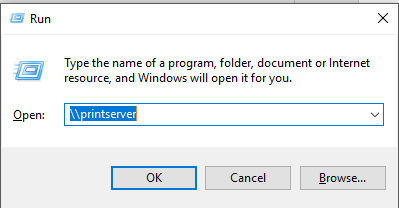
Press Windows + R, type
\\printserverand click OK.Click “Use a different account” and enter your FA.ULisboa account credentials:
cifa\enrolmentnumberorcifa\FA_username(faculty/staff), and your password.Double-click FollowMe and wait for the printer driver to install.
To print, select the FollowMe on PRINTSERVER printer.

Android and iOS
Printing from your phone only works inside the FA.ULisboa network or through the VPN.
In the Play Store (Android) or the App Store (iOS), search for YSoft SafeQ Mobile Print and install the app.
When you open the app, it asks for the server:
https://10.0.16.34:9443/end-user/ui/. For Username and Password use your FA.ULisboa account.Enable “Save credentials and Server URL” and tap “Login”.
Tap “+add files”, choose the file you want to print and tap “Upload”. The file is ready to print.

